
Drag & Drop
Update the same image across several stores in one go
Do you manage several shops, branches or points of sale and want to display the same image on every screen at the same time? With Easy Multi Display, all you have to do is organize your folders properly to broadcast identical content everywhere, then update it in a single move. Here is the method, step by step.


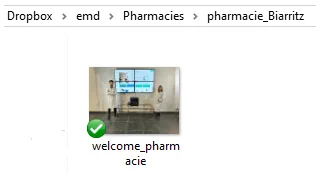

Step 1: prepare identical folders in the cloud
On an online storage service (OneDrive, Google Drive or Dropbox), create an identical folder structure for each of your locations. Each point of sale thus has its own synchronized folder, but they all follow the same organization.
This cloud synchronization ensures that every screen automatically retrieves the content you upload, with no manual action on site.
Step 2: give your files the same name
This is the key point of the method. Name the image file identically in every folder. In our example, the image is called “Welcome_pharmacie”.
Copy this image with the same name into each shop’s folder. Since the file name is identical everywhere, all the screens display exactly the same image, whatever the point of sale.
Step 3: update the image everywhere in a single move
To change the displayed content, simply replace the old file with the new one, carefully keeping the same file name.
Easy Multi Display detects the change and automatically displays the updated image, with no reconfiguration. You edit the visual once, and all your screens update together.
The tip to remember
The secret lies in the identical file name combined with folders synchronized in the cloud. Always keep the same name when replacing files: this is what enables consistent broadcasting and instant updates across all your shops.
Need help?
For any questions, contact our support team at support@easymultidisplay.com. A detailed user guide is also available for download.